Using the Drive
This page covers the everyday things: adding files, finding them, and getting them back.
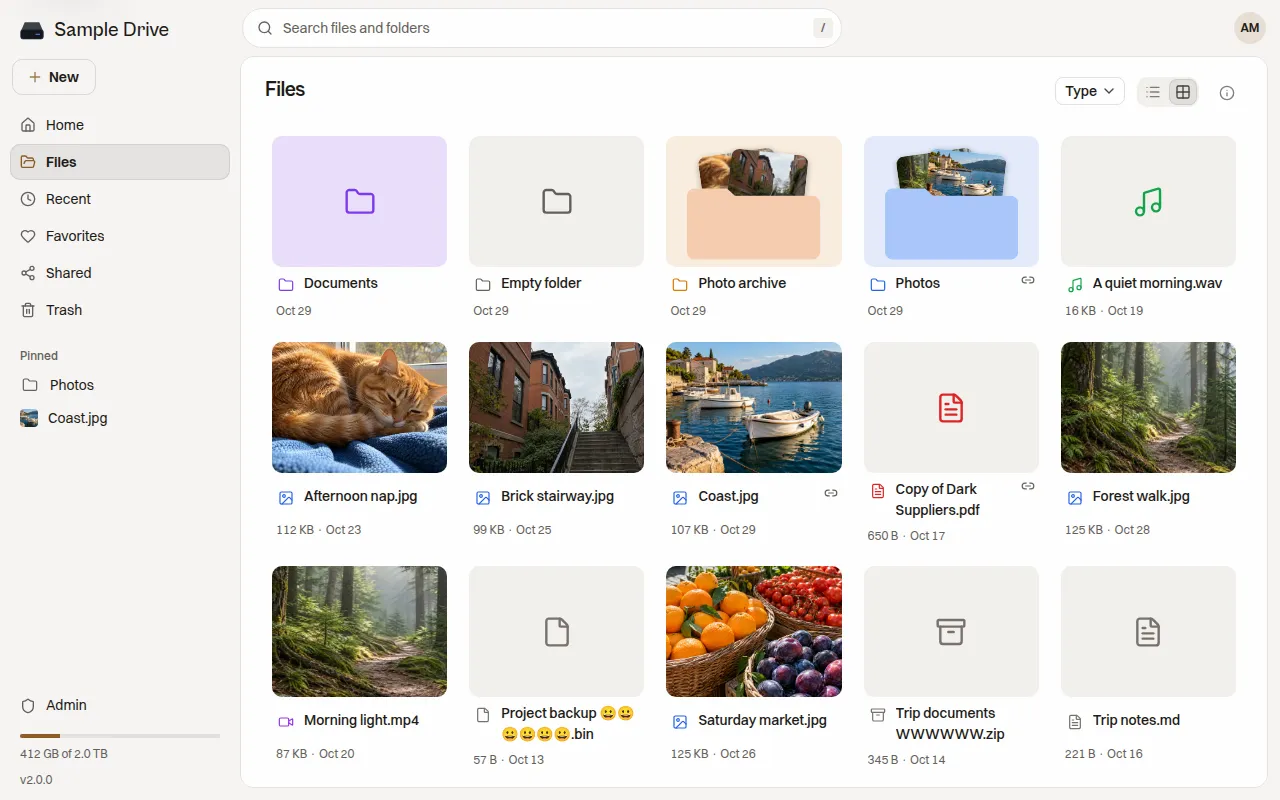
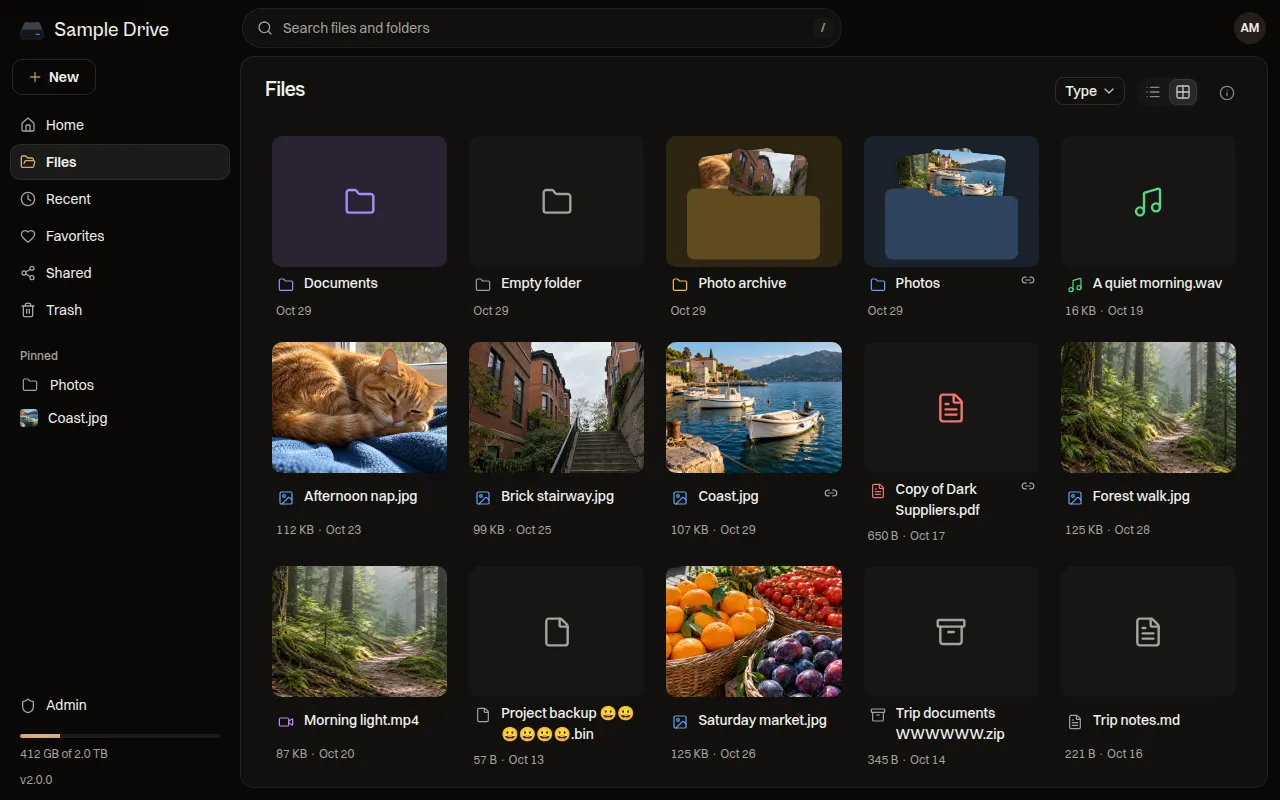
The sidebar has Home, Files, Recent, Favorites, Shared and Trash. The bar at the bottom shows how much space you use.
Add files
Section titled “Add files”- Click New, then Upload files or Upload folder.
- Or drag files and folders from your computer onto the page.
- Or copy files on your computer and press
Ctrl+V(⌘Von a Mac) in a folder.
Uploads show their progress while they run. Staaash checks every file after it arrives, so a broken upload never shows up as a file.
To make a folder, click New, then New folder.
Work with files and folders
Section titled “Work with files and folders”Click the ⋯ button on an item, or right-click it, to see what you can do:
- Open, Download, Rename, Move… and Move to trash.
- Download as zip for a folder.
- Color to give a folder a color.
- Add to favorites.
- Share to make a link. See Sharing Files.
- Details to see the size, dates and where it lives.
You can also drag items onto a folder to move them. Select several items with Ctrl or Shift and a click, or drag across empty space. Press ? to see every keyboard shortcut.
Find things
Section titled “Find things”- Press
/or click the search box at the top. Search ignores capitals and accents, socafefindsCafé. - Recent shows your latest files and activity.
- Favorites lists what you marked. Click Pin on a favorite to keep it in the sidebar.
- The list and grid buttons at the top of a page switch the view. Type shows only one kind of file, like photos or PDFs.
Look at files
Section titled “Look at files”Click a file to open it. Photos, videos, music, PDFs and text files open right in the browser. Use the arrow keys to go to the next file in the folder.
Get things back
Section titled “Get things back”Move to trash does not delete a file. It waits in Trash, which shows how many days are left before it goes for good. That is 30 days unless your owner changed it.
- Click Restore to put an item back where it was.
- Open the ⋯ menu on a file and click Delete forever to remove it now.
- Empty trash removes everything in the trash, folders too. It is on the Trash page and in Settings → Storage.
Your settings live in Your Account.